Automated screen reader testing with Claude Code, VoiceOver and Gherkin
Published on , in Design and development,
Contents
Screen reader testing is notoriously difficult, and can be slow. It’s usually because it needs to be done manually, and although developers and testers often know how to write automated acceptance tests, like the tests I wrote in the TetraLogical Accessible Components Library, this type of automation is not usually easy to apply to assistive technologies.
But, what many people don’t know, is that VoiceOver on macOS has an AppleScript dictionary, and we can drive it from the terminal. This means we can boot up VoiceOver, move the virtual focus around, and capture what VoiceOver says, all fully automated. The functionality has been there for years, but hardly anyone uses it. Because, presumably, writing AppleScript isn’t most people’s idea of a fun afternoon!
Now, anybody who knows me knows that I am very fond of using Gherkin syntax for writing tests. And, I’ve found that Claude responds very well to it. So, if we describe what a screen reader user should hear, using Given, When, and Then, we have something that reads a bit like a test plan, runs a bit like a script, and creates a log of what VoiceOver actually announces.
In this post, I’ll explain how I got it working, and how you can set it up. Like all my posts though, there’s a strong caveat, in that it won’t replace testing with real people who use screen readers every day. But, I think it could help you to get a good idea of whether something is broken, well before you ship it.
What you’ll need
- A Mac, as this is for VoiceOver only
- Claude Code, running from the terminal
- Something to test, on a URL you can reach
- About twenty minutes, most of which is just approving macOS permissions
If you’d rather see it working first, I’ve added everything covered in this post to a test repo on GitHub, called voiceover-testing-with-claude. It also includes a dummy sign-in page and a small server, to run the scenarios against.
Step 1: Allow AppleScript to control VoiceOver
Before we can do anything, we need to turn on the feature, as controlling VoiceOver with AppleScript is turned off by default. And, we can’t set this up from the command line without disabling System Integrity Protection, so I recommend doing it manually. The good news is, it only needs doing once.
Open the VoiceOver Utility. You can get there by going to:
- System Settings
- Accessibility
- VoiceOver
- VoiceOver Utility
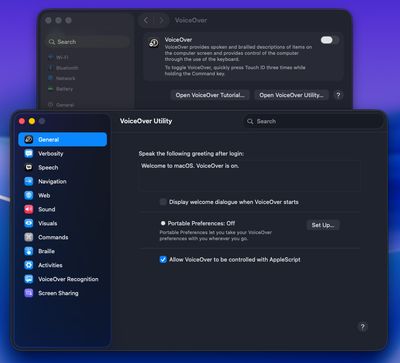
Choose “General” in the sidebar, and check “Allow VoiceOver to be controlled with AppleScript”.
Step 2: Set up terminal permissions
Now scripting is turned on, but we can’t drive VoiceOver using a script yet, because macOS needs two separate permissions. So, we also need to give permissions to the apps trying to drive it. You can configure this to work with the Terminal app, or any app you want to use which has an integrated terminal.
Note: It’s important to set the permissions for the correct app. For example, if you run Claude Code inside the VS Code terminal, it’s VS Code that needs the permissions, not the Terminal app.
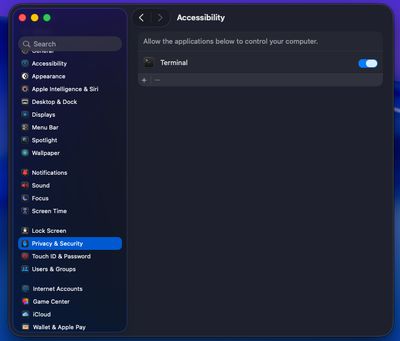
Accessibility:
- Open System Settings
- Privacy & Security
- Accessibility
- Add the app you run Claude Code from
- Toggle the permissions to “on”
Note: There is one more thing we need to give permission to, but it happens from a dialog the very first time we try to run it. So, we can’t do it yet, but I’m making a note of it here, just so you’re aware of what to do when the time comes.
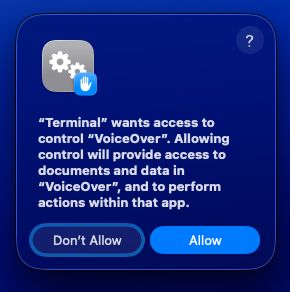
The first time a script tries to control VoiceOver, macOS will ask whether the app is allowed to control it. When this dialog appears, we need to choose “Allow”. If you change your mind later, you can manage it under Privacy & Security, then Automation.
Step 3: Configure VoiceOver for better testing
VoiceOver’s defaults are configured for people, not for scripts. So, I recommend making two changes in the VoiceOver Utility, which I found makes it a lot more predictable.
If you genuinely rely on VoiceOver in your day-to-day, and you don’t want to lose your settings, I definitely recommend exporting your preferences from VoiceOver Utility first, so you can restore them later. Or, use a different user profile for this kind of testing.
Adjust VoiceOver’s web settings
- Choose “Web” in the sidebar
- Choose “General” from the tabs at the top, not from the sidebar this time
- Uncheck both options under “when loading a new web page”
- Set “while a web page loads” to “do nothing”
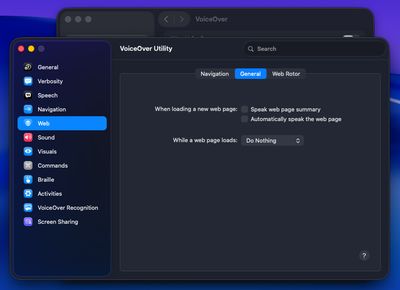
Without unchecking these options, you might find the captured output from the script contains things like “50% loaded”. This is useful for people, but in our tests it’s just noise.
Adjust VoiceOver’s navigation settings
- Choose “Navigation” from the sidebar
- Uncheck “allow cursor wrapping”
Cursor wrapping connects the first and last items in the accessibility tree to create a continuous loop. So, when you reach the bottom of the page, it will send the cursor back to the top. Turning it off gives us harder boundaries, so it’s easier for Claude to understand where a test starts and finishes.
Step 4: Prove it works before Claude touches it
To smoke test the setup:
- Open a web page in Safari
- Make sure VoiceOver is turned off
- Copy and paste the following code block into your terminal
Note: If VoiceOver is already running when you try this, nothing will happen. The first loop in the code waits for VoiceOver to announce that it is turned on. But, if it’s already on, it will get stuck at this step, because it’s literally listening verbatim for it to announce “VoiceOver is on”. This is part of the default login greeting in VoiceOver Utility, so if you’ve changed your greeting, you’ll also need to edit the text in this script to match.
# A polling loop, waits for VoiceOver to be on
open -a VoiceOver
until osascript -e 'tell application "VoiceOver" to return content of last phrase' 2>/dev/null | grep -q 'VoiceOver is on'; do
  sleep 0.1
done

# Switches to Safari
osascript -e 'tell application "Safari" to activate'

# A polling loop, waits for Safari to be the active app
until osascript -e 'tell application "Safari" to return frontmost' | grep -q true; do
  sleep 0.1
done

# Moves the VoiceOver cursor to the first element
osascript -e 'tell application "VoiceOver" to tell vo cursor to move to first item'

# Moves the VoiceOver cursor to the right
osascript -e 'tell application "VoiceOver" to tell vo cursor to move right'

# Captures the last thing VoiceOver announced
osascript -e 'tell application "VoiceOver" to return content of last phrase'

# Turns VoiceOver off
osascript -e 'tell application "VoiceOver" to quit'
After pasting in this code and waiting for a few seconds, you should hear VoiceOver turn on. It should then switch to Safari, and it should move the virtual focus around before turning it back off. When you return to your terminal, the last thing VoiceOver announced should be printed out. Don’t worry if what it prints is part of Safari’s toolbar rather than the page. We’ll deal with that in Step 7. For now, we’re just checking everything has the correct permissions.
If it doesn’t work, and you get errors, go back to steps 1 and 2 and check which apps you gave permission to.
Step 5: Understanding what is possible
It’s important that we know what we can and can’t do when controlling VoiceOver with scripts. There’s a defined set of commands, but they’re not particularly well documented. They can also change between macOS versions. So, I’ll show you how to get an up-to-date copy which matches your macOS version, rather than giving you a hard copy of a potentially out-of-date one.
To see the dictionary of commands for our current version of VoiceOver, there’s a bit of a hack we can do.
- Open Script Editor by going to
/Applications/Utilities, or by searching for it in Spotlight - Open Finder, and go to
/System/Library/CoreServices - Drag
VoiceOver.apponto the Script Editor icon in the Dock to open the dictionary
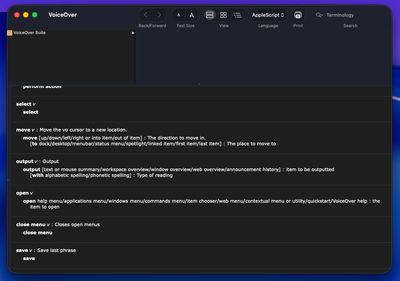
It’s worth spending 10 minutes just looking over the different commands, as it can help you to understand what you can and can’t ask Claude to do, once we start writing Gherkin tests later.
Step 6: Helping Claude understand what is possible
It’s one thing for us to know what’s possible, but we need to make sure Claude is on the same page, and that its understanding is correct for our current version of macOS and VoiceOver. So, we’re going to export all of the VoiceOver commands to give to Claude to use as a reference document. This way, we can have more confidence that we both have the same understanding and context.
The VoiceOver dictionary is just XML under the hood, and it lives inside the VoiceOver app as a file called VoiceOver.sdef. We can dump it all out using a command line tool called “sdef”, which ships with macOS. But, it needs a full Xcode install, and I found it’s actually easier to just copy the file.
Using Terminal, we can copy the dictionary to our Desktop with the following code:
cp /System/Library/CoreServices/VoiceOver.app/Contents/Resources/VoiceOver.sdef ~/Desktop/voiceover.sdefNow, in the project folder where you intend to run your automated VoiceOver tests, we need a folder named .claude, and a file within it called CLAUDE.md. These may already exist if you’ve been using Claude in the project, but if they don’t, just go ahead and create them.
Next, create another folder inside .claude, call it refs, and add the voiceover.sdef we just copied.
Finally, add some instructions to your CLAUDE.md file, so Claude Code knows the file exists and when to use it. We’ll be adding a few more sections to this file as we go, so give it a heading to keep things tidy, for example:
## VoiceOver dictionary

The VoiceOver AppleScript dictionary is in `.claude/refs/voiceover.sdef`.
This is the source of truth for what VoiceOver can do, so always check it
before writing any osascript.
Now, when Claude needs to know how to control VoiceOver, it can look up the commands from the dictionary rather than just guessing or using outdated information in its training data. I’ve found that although this can make it marginally slower, it drastically reduces the number of times Claude uses deprecated commands, or just makes up commands that don’t exist, which I think is probably a net gain for time spent overall.
Step 7: Create a script template
We don’t want to let Claude just compose any old osascript on the fly. So, we need to give it a wrapper and a fixed vocabulary instead. This makes the permissions simpler, the behaviour more consistent, and it also makes the logs easier to read.
Create a scripts folder inside .claude, next to the refs folder from the last step, and save the following script as .claude/scripts/vo.sh:
#!/usr/bin/env bash

# A wrapper around VoiceOver's AppleScript dictionary
#
#   vo.sh start                   turn VoiceOver on, if it isn't already
#   vo.sh stop                    turn VoiceOver off
#   vo.sh first                   move the VoiceOver cursor to the first item
#                                 inside the web page
#   vo.sh next                    move the VoiceOver cursor right
#   vo.sh prev                    move the VoiceOver cursor left
#   vo.sh activate                press the item in the VoiceOver cursor, like
#                                 VO-Space
#   vo.sh find <name> [text]...   move through the page from the top until an
#                                 announcement contains the name as whole words
#                                 and the rest anywhere, for example:
#                                 find "Sign in" button
#   vo.sh last                    print everything VoiceOver said after the
#                                 last command runs
#
# Every command that moves the cursor or presses something prints what
# VoiceOver announced as a result, so you can log that directly, or run
# `vo.sh last` afterwards to see it again.
set -euo pipefail

LAST_FILE="${TMPDIR:-/tmp}/vo-sh-last-announcement"

vo() { osascript -e "tell application \"VoiceOver\" to $1"; }

# Collects everything VoiceOver says over the next couple of seconds and joins
# it with commas. VoiceOver announces an item in chunks, and its "last phrase"
# only ever holds the latest chunk, so only reading once straight after a move
# can miss most of it.
capture() {
  local before=$1 phrase previous='' out='' quiet=0
  for _ in $(seq 1 12); do
    sleep 0.1
    phrase=$(vo 'return content of last phrase' 2>/dev/null || true)
    phrase=${phrase//$'\n'/ }
    if [[ -n "$phrase" && "$phrase" != "$previous" && ( -n "$out" || "$phrase" != "$before" ) ]]; then
      out+="${out:+, }$phrase"
      previous=$phrase
      quiet=0
    elif [[ -n "$out" ]]; then
      quiet=$((quiet + 1))
      if [[ $quiet -ge 4 ]]; then break; fi
    fi
  done
  printf '%s\n' "$out" > "$LAST_FILE"
  printf '%s\n' "$out"
}

# Runs one VoiceOver command, then prints what VoiceOver said about it
act() {
  local before
  before=$(vo 'return content of last phrase' 2>/dev/null || true)
  vo "$1"
  capture "$before"
}

# Puts the VoiceOver cursor on the first item inside the web page. It starts
# from the window's first item, which means walking past the toolbar to the
# "web content" area and interacting with it. If no web content area turns up,
# the cursor was already inside the page, so just go back to the top.
enter_web_content() {
  local phrase
  vo 'tell vo cursor to move to first item'
  sleep 0.3
  for _ in $(seq 1 12); do
    phrase=$(vo 'return content of last phrase' 2>/dev/null || true)
    if [[ "$phrase" == *"web content"* ]]; then
      act 'tell vo cursor to move into item'
      return 0
    fi
    vo 'tell vo cursor to move right'
    sleep 0.3
  done
  act 'tell vo cursor to move to first item'
}

# True when the announcement contains the name as whole words and every other
# needle anywhere, ignoring case. Whole words, so "Email address" matches
# "Email address email field" but not "Enter your email addresses".
phrase_has() {
  local phrase=$1 name=$2 needle escaped regex
  shift 2
  shopt -s nocasematch
  [[ -n "$phrase" ]] || return 1
  for needle in "$@"; do
    [[ "$phrase" == *"$needle"* ]] || return 1
  done
  escaped=$(printf '%s' "$name" | sed 's/[][\.*^$+?(){}|\\]/\\&/g')
  regex="(^|[^[:alnum:]])${escaped}($|[^[:alnum:]])"
  [[ "$phrase" =~ $regex ]]
}

case "${1:-}" in
  start)
    # Only start VoiceOver if it isn't already running, then wait for it to
    # announce itself
    if ! pgrep -xq VoiceOver; then
      open -a VoiceOver
      until vo 'return content of last phrase' 2>/dev/null | grep -q 'VoiceOver is on'; do
        sleep 0.1
      done
    fi ;;
  stop)     vo 'quit' ;;
  first)    enter_web_content ;;
  next)     act 'tell vo cursor to move right' ;;
  prev)     act 'tell vo cursor to move left' ;;
  activate) act 'tell vo cursor to perform action' ;;
  last)     cat "$LAST_FILE" 2>/dev/null || vo 'return content of last phrase' ;;
  find)
    shift
    if [[ $# -eq 0 ]]; then
      echo 'usage: vo.sh find <name> [text]..., e.g. vo.sh find "Sign in" button' >&2
      exit 1
    fi
    announcement=$(enter_web_content)
    empties=0
    for _ in $(seq 1 80); do
      if phrase_has "$announcement" "$@"; then
        echo "$announcement"
        exit 0
      fi
      # VoiceOver's hint about leaving the web area, or nothing new announced
      # twice in a row, means the cursor has stopped moving
      if [[ "$announcement" == *"exit this web area"* ]]; then break; fi
      if [[ -z "$announcement" ]]; then
        empties=$((empties + 1))
        if [[ $empties -ge 2 ]]; then break; fi
      else
        empties=0
      fi
      announcement=$(act 'tell vo cursor to move right')
    done
    echo "Couldn't find an item announced as: $*" >&2
    exit 1 ;;
  *) echo "usage: vo.sh start|stop|first|next|prev|activate|find|last" >&2; exit 1 ;;
esac
Make it executable by running the following in the Terminal, inside the project directory:
chmod +x .claude/scripts/vo.shThis is a fair bit of scaffolding, but it allows Claude to do a few things a bit more easily:
-
VoiceOver doesn’t automatically interact with a web page, so when I was trying to use
move to first item, it was actually focusing on Safari’s toolbar. Now, the functionenter_web_content()walks the VoiceOver cursor to the first element on the page. -
VoiceOver’s “last phrase” only holds the very latest chunk of what it said, which is sometimes not the complete output for an element. Now, the
capture()function polls for a couple of seconds and joins those chunks together. -
findandactivateare helper commands that move to an item by what it’s called, and press it.findwalks the page from the top until an announcement contains the name as whole words, plus anything else you give it, for examplefind "Sign in" button.
We can always add more commands as we need them. For example, we might want to create one to navigate by headings or landmarks.
We use this wrapper to help guide Claude. Every time it tries to do something that isn’t in the wrapper, that’s a cue for us to add a new command. We don’t want to allow it to go off and just start freestyling. So, like we did with the dictionary, we need to tell Claude that this wrapper exists, and that it’s the only way it should be driving VoiceOver. Add the following section to your CLAUDE.md, underneath the one from the last step:
## How to drive VoiceOver

- Only use `.claude/scripts/vo.sh` to control VoiceOver. Never write ad hoc
osascript commands. If a step can't be done with the existing subcommands, stop
and tell me, and propose a new subcommand to add to the wrapper. Check the
dictionary first to make sure it's actually possible.
Without these instructions, Claude has no reason to prefer this wrapper over just composing its own osascript commands on the fly, and it will happily just do the latter. But, if it’s knocking up its own scripts every time, it’s going to make it way more inconsistent.
However, these are just instructions, not a lock, so Claude will usually follow them, but it’s not guaranteed. So, we also need to set up some proper permissions to stop it from running anything else.
Step 8: Set up Claude Code permissions
We need to set up two files. One tells Claude what it is allowed to run, and the other tells it how it should behave.
Claude permissions
Create a new file in the .claude folder called settings.json, and add the following code:
{
  "permissions": {
    "allow": [
      "Bash(.claude/scripts/vo.sh *)",
      "Bash(./.claude/scripts/vo.sh *)",
      "Bash(open -a Safari *)"
    ]
  }
}
The first two rules let Claude call the wrapper without asking us for permission every time. The third lets it open URLs in Safari, and only Safari, because using open on its own will open your default browser. This means VoiceOver could end up reading the wrong window, like Chrome or Firefox.
I’m overly cautious with Claude permissions. If you don’t like having to select “allow” every few minutes, you could use a wildcard and allow Claude to run any old script, for example, Bash(osascript *). However, I’d strongly recommend being more selective, because with AppleScript, you can control or edit pretty much anything on your Mac, and you don’t want Claude getting confused and just ripping through all of your settings completely unchecked. It would probably be pretty inconvenient if it went off on a tangent and accidentally rearranged all the apps in your Dock, but given a lot of the news headlines lately, I’m sure we could all imagine scenarios far worse than this!
The good thing about these permission rules in the settings.json, is that they’re enforced by the Claude Code software itself, not the model. So, unlike the instructions in our CLAUDE.md, which are guidelines Claude will generally follow, these are checked by the software every time the model tries to run a command.
Claude instructions
As I mentioned earlier, instructions go in our CLAUDE.md file. Claude reads this at the start of every session. So, in here, we’re going to tell Claude what our expectations are, and how it should behave.
We’ve already added two sections to this file in steps 6 and 7. Now we’re going to fill in the rest. Below is the complete file, including the sections we’ve already written, so you can see how it all fits together. Either replace what you have with this, or add the new sections around the ones you already have.
# Screen reader testing with VoiceOver

## What this project is

Gherkin scenarios in `features/` describe how the site under test should
behave with VoiceOver. Your job is to run them against the running app and
report pass or fail, with the exact phrases VoiceOver spoke.

## Where the app is

The app runs at `http://127.0.0.1:8080`. Paths in the scenarios are relative
to this.

## VoiceOver dictionary

The VoiceOver AppleScript dictionary is in `.claude/refs/voiceover.sdef`.
This is the source of truth for what VoiceOver can do, so always check it
before writing any osascript.

## How to drive VoiceOver

- Only use `.claude/scripts/vo.sh` to control VoiceOver. Never write ad hoc
  osascript commands. If a step can't be done with the existing subcommands,
  stop and tell me, and propose a new subcommand to add to the wrapper.
  Check the dictionary first to make sure it's actually possible.
- Every wrapper command that moves the cursor or presses something prints
  what VoiceOver announced as a result. Log that verbatim after every step.
  `vo.sh last` prints it again if you need it.
- Give VoiceOver a second after opening a page before moving the cursor.
- Never mark a step as passed on an assumption. If you didn't capture a
  phrase, that step fails, and you say why.

## Reporting

- One line per step: pass or fail, the step text, the phrase captured.
- Quote VoiceOver output exactly. Don't tidy it up or paraphrase it.
- Where a Then step fails, say what was announced instead and, if you can
  tell, which element it came from.
- Finish with a short summary: scenarios run, passed, failed.

## Hard rules

- Don't change any VoiceOver Utility settings.
- Turn VoiceOver off at the end with `vo.sh stop`.
- Don't edit the app's source code to make a scenario pass.
The dictionary and wrapper sections are the ones we wrote out earlier. The new parts are a line on what the project is for, where the app is running, and how to report the results. There are also a few hard rules we want it to follow.
Note: I used 127.0.0.1 rather than localhost, because I use localhost a lot for other dev work, and I found Safari’s autofill menu for saved passwords often interrupted what VoiceOver was just about to say.
The last rule, about not letting Claude edit the app’s source code, might sound hilarious, but I’ve seen it happen. Without strict constraints, and in its quest to be helpful, Claude would go outside of the scope of testing the thing, and just start applying engineering fixes in order to make the tests pass.
Making this portable as a skill
If you want to reuse this functionality across projects, we can also package it up as a Claude skill too. The benefit of using a skill, is that they load on demand rather than needing to be added to every conversation. Claude is supposed to automatically pick them up when the task matches the description we provide as part of the skill definition.
To create a new skill, create a new markdown file in Claude’s folder in your home directory. For example:
~/.claude/skills/voiceover-testing/SKILL.mdThen, complete the following:
- Create a
scripts/folder alongside theSKILL.mdfile - Add
vo.shto thescripts/folder - Add the instructions from the
CLAUDE.mdto theSKILL.mdfile - Add the following frontmatter data to the top of the
SKILL.mdfile
---
name: voiceover-testing
description: Run Gherkin scenarios against a web page using VoiceOver on macOS. Use when asked to test with a screen reader, run .feature files, or check what VoiceOver announces.
---
If you choose to package it up as a skill, then the project’s CLAUDE.md file only needs the project-specific bits, like the URL, where to find the feature files, and anything nuanced about the app. We don’t need to repeat everything in both places. Just note that your wrapper would now live at ~/.claude/skills/voiceover-testing/scripts/vo.sh, so the permission rules and the “How to drive VoiceOver” instructions would both need changing to point at that path instead.
Step 9: Write the scenarios
In my opinion, Gherkin is always the right format for tests, and that’s a hill I’m prepared to die on. My reasoning, is that it forces you to state exactly what the expectation is, in a way which is clear for anybody reading it. The scenarios essentially double up as documentation, describing the expected screen reader experience, which is something most projects just don’t have.
For example, features/sign-in.feature:
Feature: Sign-in page works with VoiceOver

  Background:
    Given VoiceOver is running
    And I am on "/sign-in"

  Scenario: The page has a sensible heading structure
    When I move through the page
    Then the first heading announced should include "heading level 1"
    And the first heading announced should include "Sign in"
    And no heading level should be skipped

  Scenario: Submitting an empty form moves focus to the error summary
    When I activate the "Sign in" button
    Then the announcement should include "There is a problem"
    And the error summary should list "Enter your email address"

  Scenario Outline: Each field is labelled and describes its own error
    When I activate the "Sign in" button
    And I move the VoiceOver cursor to the "<label>" field
    Then the announcement should include "<label>"
    And the announcement should include "Error: <error>"
    And the announcement should include "field"

    Examples:
      | label         | error                    |
      | Email address | Enter your email address |
      | Password      | Enter your password      |
Here are my suggestions for writing good Gherkin tests for VoiceOver:
-
Keep scenarios tightly scoped, so if something fails, you know exactly why.
-
Write your
Thensteps from the screen reader user’s point of view. For example, “The announcement should include…”. This keeps it focused on the experience, rather than the underlying technical implementation. -
Don’t write your
Thensteps from the DOM’s point of view. For example, “The input should have anaria-labelwith the value…”. This is a code review, not a screen reader user’s experience. -
Use “should include” rather than trying to look for an exact match. VoiceOver’s phrasing can change with verbosity settings and punctuation levels, so tests can end up overly brittle if you’re too specific. For example, VoiceOver calls an email input an “email field”, a password input a “secure text field” and a plain text input a “text field”, so rather than listening for any of those verbatim, I found it’s often better to just listen for “field”.
-
Use
Backgroundto set up the scenarios, so that each one always starts from the same place. -
Use a
Scenario Outlinewhen you need to run the same check on several things, like a collection of labelled form fields. Put the fields in an Examples table and you only need to write the steps once. -
Keep the URL out of the feature file. The
Backgroundblock sets the path, andCLAUDE.mdsays which host it’s on, so you can run the same features against local, staging, or production without having to edit each one individually.
Fixing the vocabulary
There’s one more thing, and in my experience, it’s the thing that actually makes all the scenarios reusable. Normally, when you write Gherkin, every step is backed by a step definition, which is a chunk of code that defines exactly what happens when you write something like “When I move through the page”. For example, I usually write my tests using JavaScript and Playwright, and when it runs, it just always does the exact same thing every time. Which is what you want in testing.
However, we don’t have any of that here. Claude is just reading the steps as plain English, and then deciding what to do off the back of that. Now, as you probably already know, language models work on probability. So, they’re not very good at doing the exact same thing over and over.
The reason for this, is that Claude runs every prompt you give it through a reasoning model. It takes what you’ve written, and generates instructions and tasks based on what it thinks you are asking it to do. And, because it’s generative based on probability, each time it reasons with your prompt, even if it’s exactly the same as the last one, there are going to be variations in the instructions and tasks it writes itself. So, there’s no guarantee it will interpret the same instructions in the exact same way, every time. To try and reduce this flexibility, we need to do the same thing we did with the AppleScript commands, and try to give it a more fixed vocabulary to work from.
Add the following vocabulary to the CLAUDE.md, or to your SKILL.md file, if that’s how you’re using it:
## Step vocabulary

Only use these steps. If a scenario needs something else, stop testing and
propose the step and the vo.sh subcommand that would support it.

| Step | What to do |
| --- | --- |
| Given VoiceOver is running | `vo.sh start` if it isn't already |
| Given I am on "<path>" | `open -a Safari` with the base URL plus the path, then wait a second |
| When I move the VoiceOver cursor to the first item | `vo.sh first` |
| When I move the VoiceOver cursor to the next item | `vo.sh next` |
| When I move through the page | `vo.sh first`, then `vo.sh next` until VoiceOver gives its hint about exiting the web area, or announces nothing new twice in a row |
| When I move the VoiceOver cursor to the "<label>" field | `vo.sh find "<label>" field` |
| When I activate the "<name>" button | `vo.sh find "<name>" button`, then `vo.sh activate` |
| Then the announcement should include "<text>" | the last announcement contains the text |
| Then the announcement should not include "<text>" | the last announcement does not contain the text |
| Then the first heading announced should include "<text>" | the first announcement containing "heading level" includes the text |
| Then no heading level should be skipped | across all announcements, heading levels never jump by more than one |
| Then the error summary should list "<text>" | `vo.sh next` through the error summary until an announcement includes the text |

Text fields announce in two steps: the first move announces the label, for
example "Email address", and the next move enters the field and announces the
full thing, for example "Email address Error: Enter your email address email
field". `vo.sh find "<label>" field` handles that for you. When walking with
`vo.sh next`, expect to encounter both.
Each step maps to one command in our wrapper, or one check against the captured phrases, so it’s easier to interpret and to get to the same outcome each time. The steps are the reusable part. The Examples tables and the paths are the project-specific parts, and they’re the only things that should change between feature files.
When you need a new step, in the same way you would add a new JavaScript test, you simply add a row and describe what should happen. Either give it the VoiceOver command yourself, or tell Claude it needs to prompt you to help create a new subcommand when it tries to run it. For example:
| When I move the VoiceOver cursor to the next heading | Needs a new subcommand |Now, when you run the feature, you should find Claude stops at those steps and recommends a new subcommand it should use. Check the VoiceOver dictionary to make sure Claude is not hallucinating, add it to the wrapper, and run it again.
Step 10: Run it
Open Claude Code in the project and give it the following prompt:
Run features/sign-in.feature and report.
Claude should:
- Read the feature file
- Start VoiceOver
- Open the URL in Safari
- Walk the cursor through the page capturing what VoiceOver announces
- Compare what it captured with the
Thentest steps - Write a report
- Turn VoiceOver off again
The report should look something like the following:
Scenario: Each field is labelled and describes its own error [Email address]
  PASS  When I activate the "Sign in" button
        -> "Sign in button"
  PASS  And I move the VoiceOver cursor to the "Email address" field
        -> "Email address Error: Enter your email address email field"
  PASS  Then the announcement should include "Email address"
  PASS  And the announcement should include "Error: Enter your email address"
  PASS  And the announcement should include "field"

Scenario: Submitting an empty form moves focus to the error summary
  PASS  When I activate the "Sign in" button
        -> "Sign in button"
  FAIL  Then the announcement should include "There is a problem"
        -> nothing announced
        Focus stayed on the button. The error summary rendered but
        nothing moved focus to it.
Read the log yourself. The pass and fail outcomes are Claude’s opinion, but the captured phrases are the hard evidence. I’d recommend you always read the captured phrases and see if they align with your own expectations, then decide yourself whether it passed or failed. Don’t just take Claude’s word for it.
Conclusion: does it work?
I’ve found this method with Claude to be pretty good at finding common problems, for example:
- Missing or incorrect labels
- Heading structure
- Reading order
- Focus not handled correctly
- Hidden content being announced
- Decorative images that aren’t hidden
However, I did find a niche issue around language, and it’s due to the way this method works. For anybody looking to implement this, the thing which is probably most important to understand, is that Claude doesn’t actually hear anything. What it’s capturing is a text string from the output of the VoiceOver API, not the audio itself. Because of this, I’ve found that it can easily miss errors in pronunciation or grammatical pauses, or where the natural flow and rhythm sounds off. For example, if VoiceOver has loaded the wrong language pack because of a stray lang attribute, it can be mispronouncing stuff all over the place. But, if the text string that is output by the API looks correct, it will just sail straight past Claude, completely unchecked. So, I’d advise you to still listen to it when it’s running, rather than just muting your laptop and wandering off to get a coffee or something.
Another thing which was a pain in the arse, as I mentioned earlier, is autofill for passwords. Safari opens the autofill menu as soon as the focus reaches a password field, and so does 1Password if you have it installed. This can interrupt VoiceOver, and also introduces noise into the logs. For example, instead of “Sign in button”, you might get “Closing menu Sign in button”, where it captured the autofill menu closing. It’s why I found it’s better to write tests as “should include”, rather than trying to match the output exactly.
In general, it does work quite well. Though, I found it to be a bit flaky when setting it up from scratch, and it did take a bit of trial and error to get it working consistently. For example, I found I had to keep adding little hacks here and there, because for some reason VoiceOver just needs a moment from time to time. And, if you don’t give it one I found it will usually capture the previous phrase instead. I don’t really know why, it could be a lag in the API, or a buffering issue when loading or something. But, I did find that adding little breathers seems to fix it. So, you may find you need to build pauses into your wrapper where you can, rather than just relying on your prompt.
With all of this, I think it’s important to remember that Claude is interpreting our Gherkin, not executing it. Unlike a regular Gherkin / Cucumber test, there’s no actual step definition file, no test code, and no test harness. This makes it quick to set up, and easy to extend, but also the thing which makes it non-deterministic. If you want a truly robust and repeatable set of deterministic tests, which pass and fail in a CI pipeline, then you probably want to use something like Guidepup instead, which is designed for exactly that.
This is a quick and dirty way to add some level of automation to assistive technology testing, but to reiterate the caveat from the beginning, none of this replaces testing with real people who use screen readers every day. They will find things that Claude can’t, because they’re actual people, listening with their ears. They’re not scripts capturing API outputs. Also, this is VoiceOver only, and we know that NVDA and JAWS on Windows often behave very differently. So, just because something works fine using this method, does not mean it’s automatically going to work for everybody.
Final thoughts
The setup was a bit fiddly to get working, but it’s mostly macOS permissions, and once it’s done you don’t need to do it again. But, it does work, and what you get is a way to describe the screen reader experience in plain English, and have it run through it in a fraction of the time it would take to do it manually.
The quality of the results is pretty good. But, in my opinion, it’s likely to hinge on the experience of the person writing the scenarios. I think you probably need to have a reasonable level of experience with screen readers, in order to be able to set the expectations for what it should or should not announce. And, I don’t really see a way around that with this approach.
However, what this tooling setup does give people who can write these tests, is a way you can quickly do screen reader testing without needing to distort your hand into some kind of animal claw, in an attempt to hold down multiple keys at once, whilst you mash the right arrow key two hundred times just to see if a button at the end of the form is announcing the correct label. Hey, if you know, you know!
Having said all of that, in all honesty, I’m not entirely convinced it’s worth the hassle, or the environmental impact. I found that in order for it to be consistent, I still needed to do quite a bit of work to control it in a way where it’s useful. And, because there are no actual test steps under the hood, it’s technically going to be burning down trees every time we run it, because Claude has to read all the files, interpret the prompt and then do the tests.
Personally, I think there’s probably more return on investment in having Claude help you write good old deterministic acceptance tests using Guidepup instead. Because, once they’re written, you can run them a thousand times over without prompting Claude or spending a single token.
Anyway, I’ll shut up now. If you do try it, I’d be interested in hearing your thoughts and how it worked for you. The companion repo, voiceover-testing-with-claude, has all of the files from this post ready to clone. And, if you’ve thought of other ways to use it, or improved it, please do share what you’ve done!
As always, I hope this was useful.
Thanks,
Craig