Raspberry Pi Kiosk
Turning a Raspberry Pi into a self-monitoring, touch-screen kiosk that boots straight into a web app and quietly recovers when things go wrong.
This project is my trial and error set of scripts and notes for building this kind of project. I’ve kept refining each time I built another one and documenting the various things I’ve needed to do. This project is as much for me, to remember everything, as it is for anybody else that wants to use it.
Situation
Way back in 2017, in my time at the Department for Work and Pensions, we had an issue with meeting rooms. You had to book rooms in a paper diary, which nobody checked, and there were frequent squabbles over who had the right to use a room at a given time.
Chris Thompson scheduled a hack day, and we tried to solve the problem of creating a booking system and a wall mounted display which connected to it.
For the purposes of this project, we’re focusing purely on the display, and I’ve iterated and updated the project many times since 2017, for different situations.
Task
We needed to build a kiosk that was cheap, small, and cost little to run. It also needed to boot into full-screen, and stay online without anyone being there to babysit it.
The kiosk needed to survive the real world without a keyboard or a person on hand to fix it if anything went wrong. Here are some of the problems I needed to solve:
- Booting cleanly into one app
- Surviving bad shutdowns
- Staying online unattended
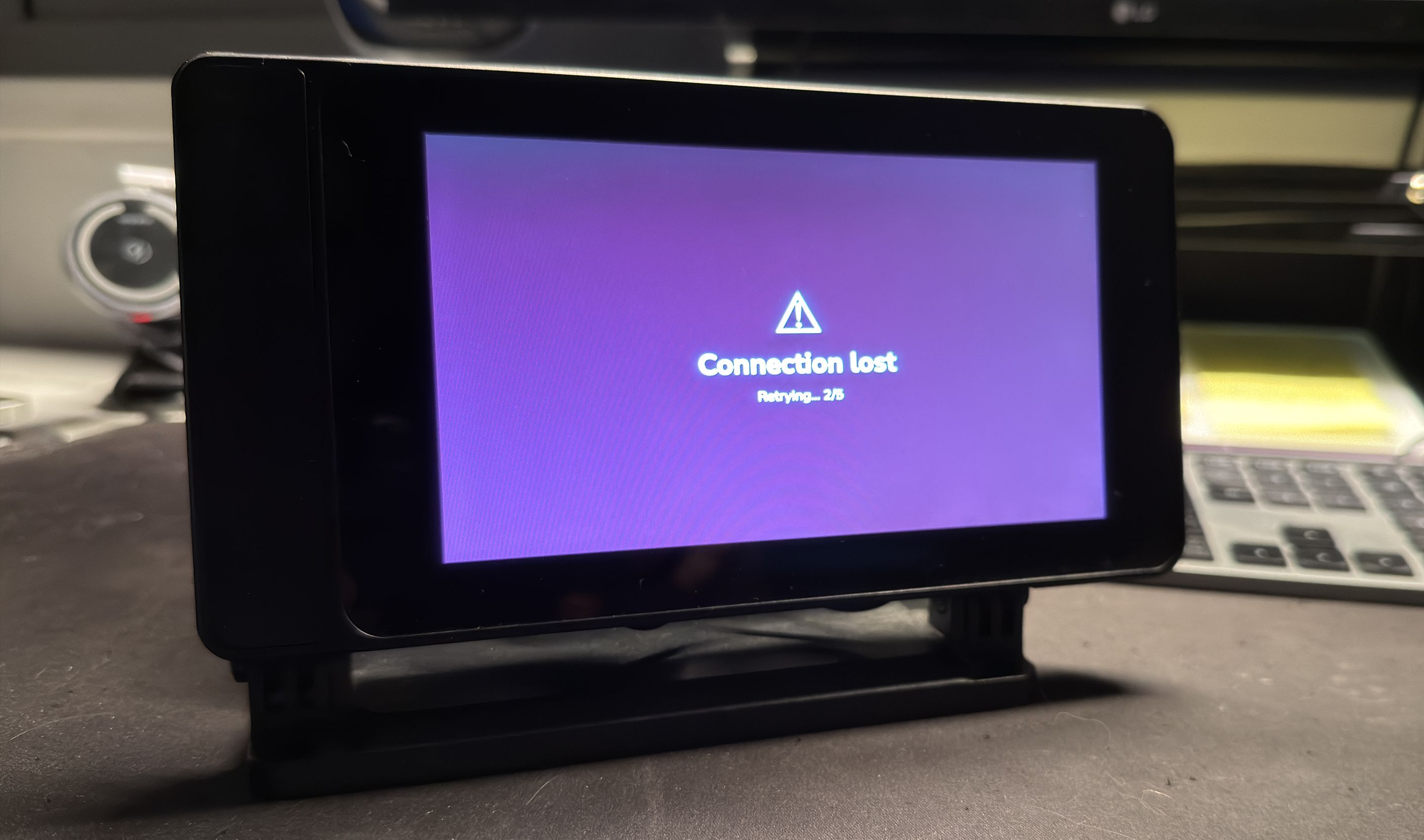
- Displaying meaningful information if it goes offline
- Looking like a native device, not a Linux desktop
Action
We built the whole thing out of small, single-purpose shell scripts. The idea is that each piece is a module, that is (hopefully) easy to understand, swap, or leave out entirely.
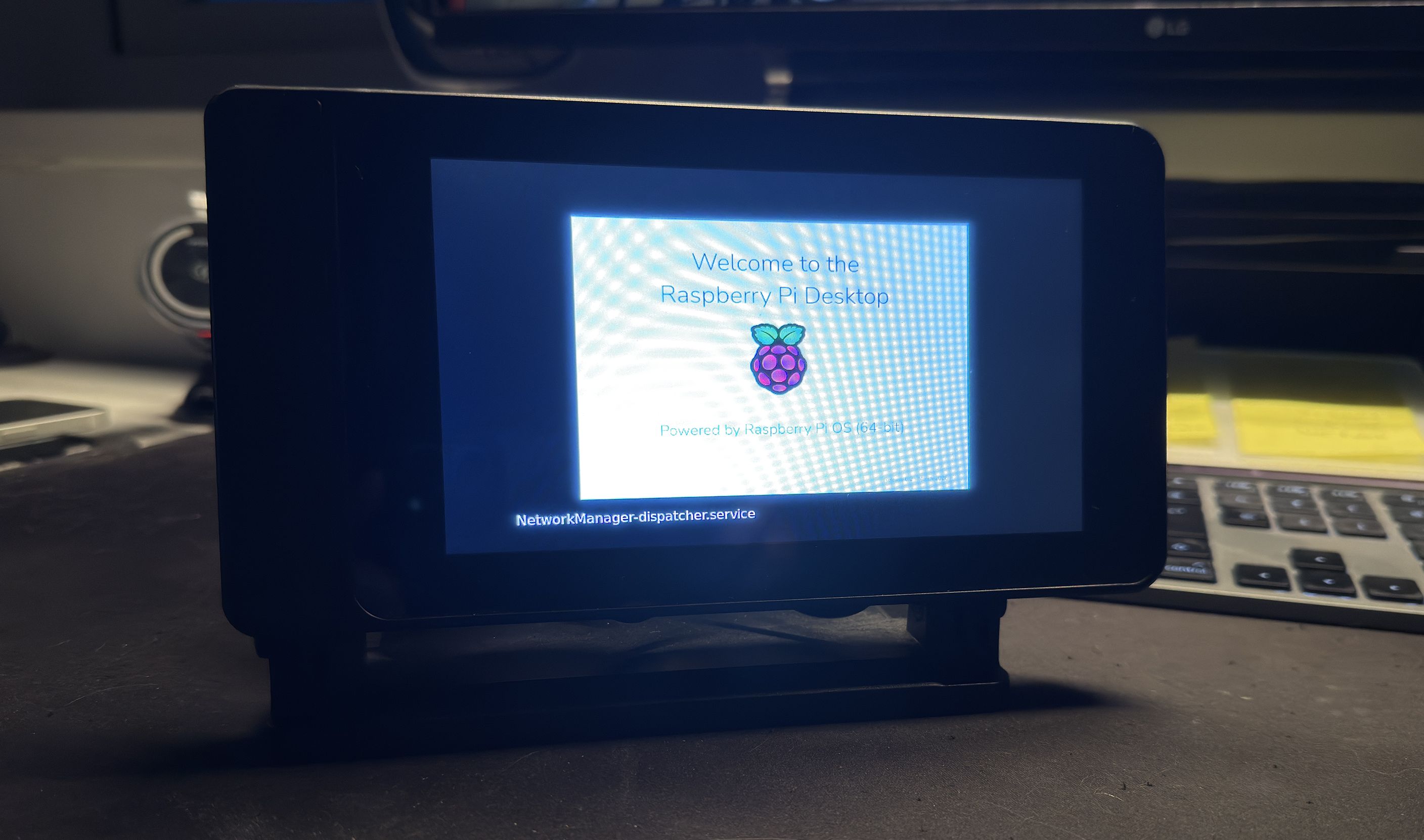
Booting straight into a browser: kiosk.sh launches Chromium in kiosk mode from labwc’s autostart. It relies on two flags:
--incognitostops Chromium’s “restore pages” prompt after a bad shutdown--password-store=basicstops GNOME’s keyring dialog on first boot
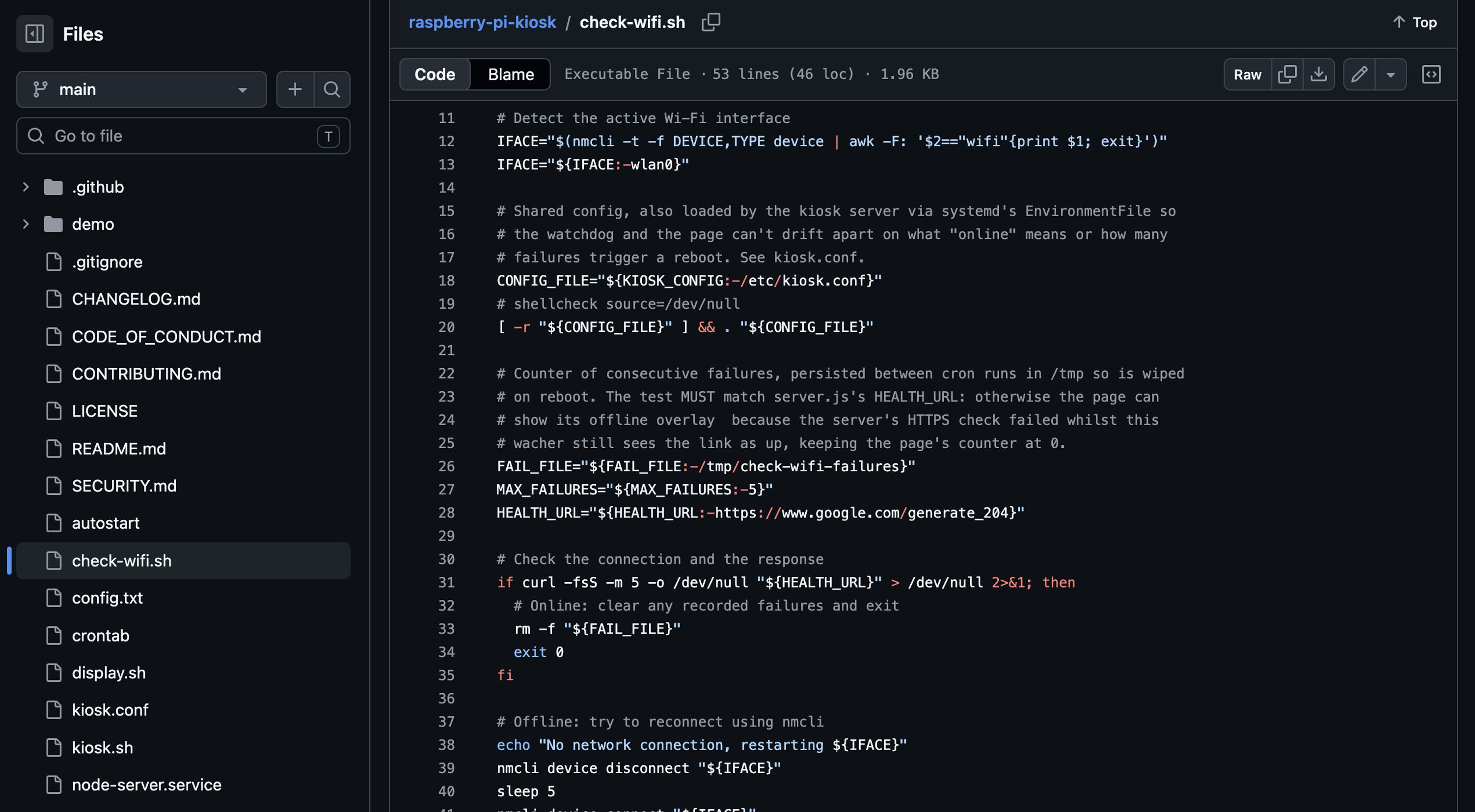
Self-healing networking: check-wifi.sh runs every minute via cron. It polls a URL and, if it can’t reach it, it disconnects and reconnects the Wi-Fi with nmcli. After five consecutive failures it reboots the Pi automatically, which tends to always work as a last resort.
Display scheduling: display.sh powers the screen on and off on a schedule using wlr-randr, which disables the backlight rather than just painting black pixels, saving power and increasing the lifespan of your display.
A local server: A small Node server lets you host HTML locally, meaning that if the internet goes down, the kiosk can show a custom offline screen instead of breaking.
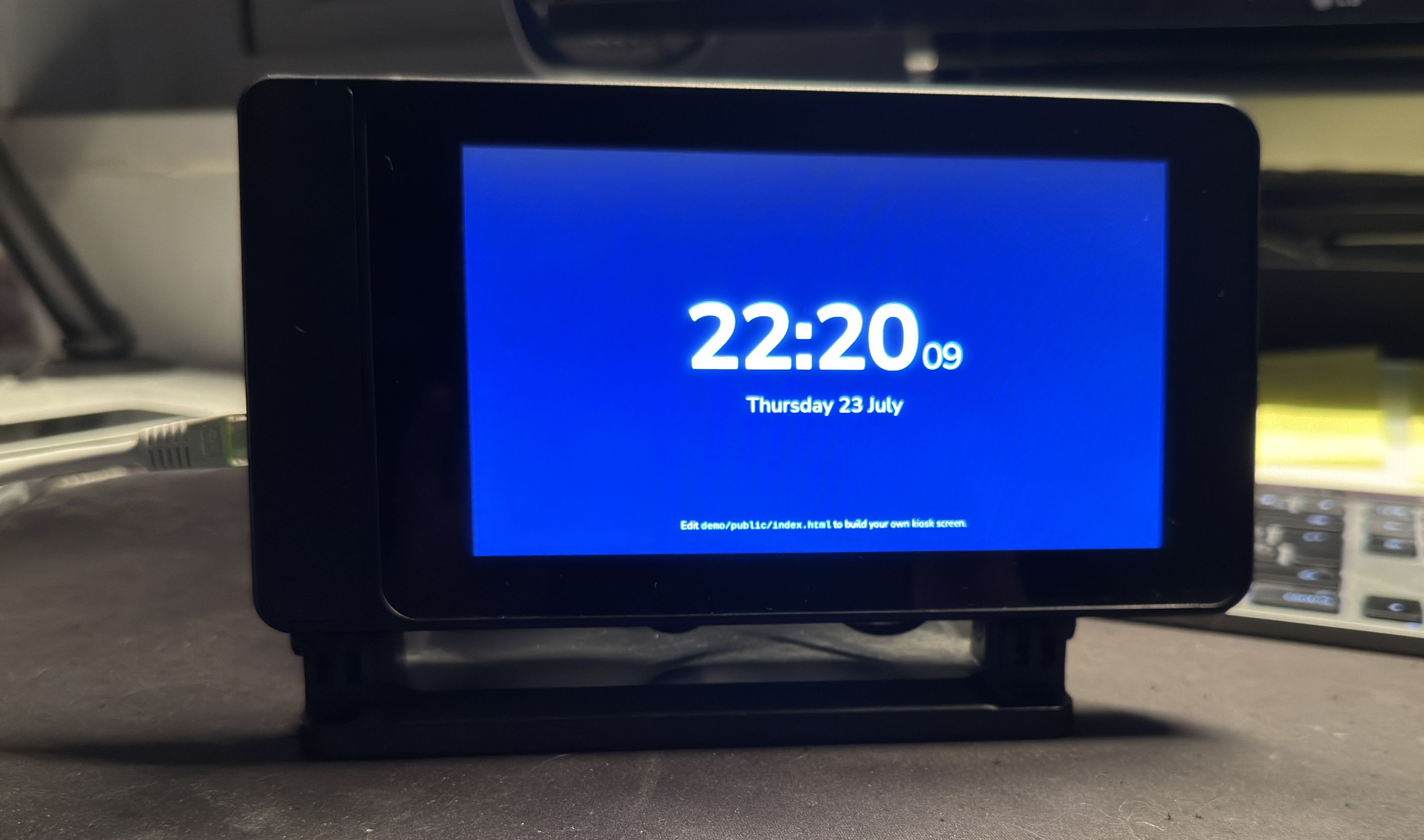
Demo content: There’s a bundled demo which serves a full-screen clock and /health endpoint you can poll from your own pages.
Cursor management: I’ve found that CSS can’t hide the compositor’s startup cursor on its own, so I’ve paired swayidle with wtype to trigger labwc’s built-in HideCursor keybinding, about a second after boot. For interactive touchscreens there’s also a small JavaScript utility that hides the cursor after a period of inactivity.
Result
The result is a repeatable recipe for building a kiosk.
Flash a card, SSH in, clone the repo, run a handful of commands, and you have a kiosk that boots into your interface and looks after itself. The Wi-Fi watchdog and offline handling mean these units can run in the wild for months without anyone touching them, and because it’s all plain shell scripts and standard tooling, it’s easy to adapt to whatever the next display needs to show.
At a glance
- Type
- Open Source
- Date
- 2017–2026
- Built with
- Links
- Tags